If your team has sub-teams, here is what you will see
This guide is for a team in Azure DevOps whose area includes the areas of its sub-teams, for example a programme or tribe team above several squads. If your team has no sub-teams, nothing changes for you: you will not see the new view or the new switch, and your numbers stay as they are. The rest of this page walks through what is new, with screenshots from a demo team.
A new Sub-teams view
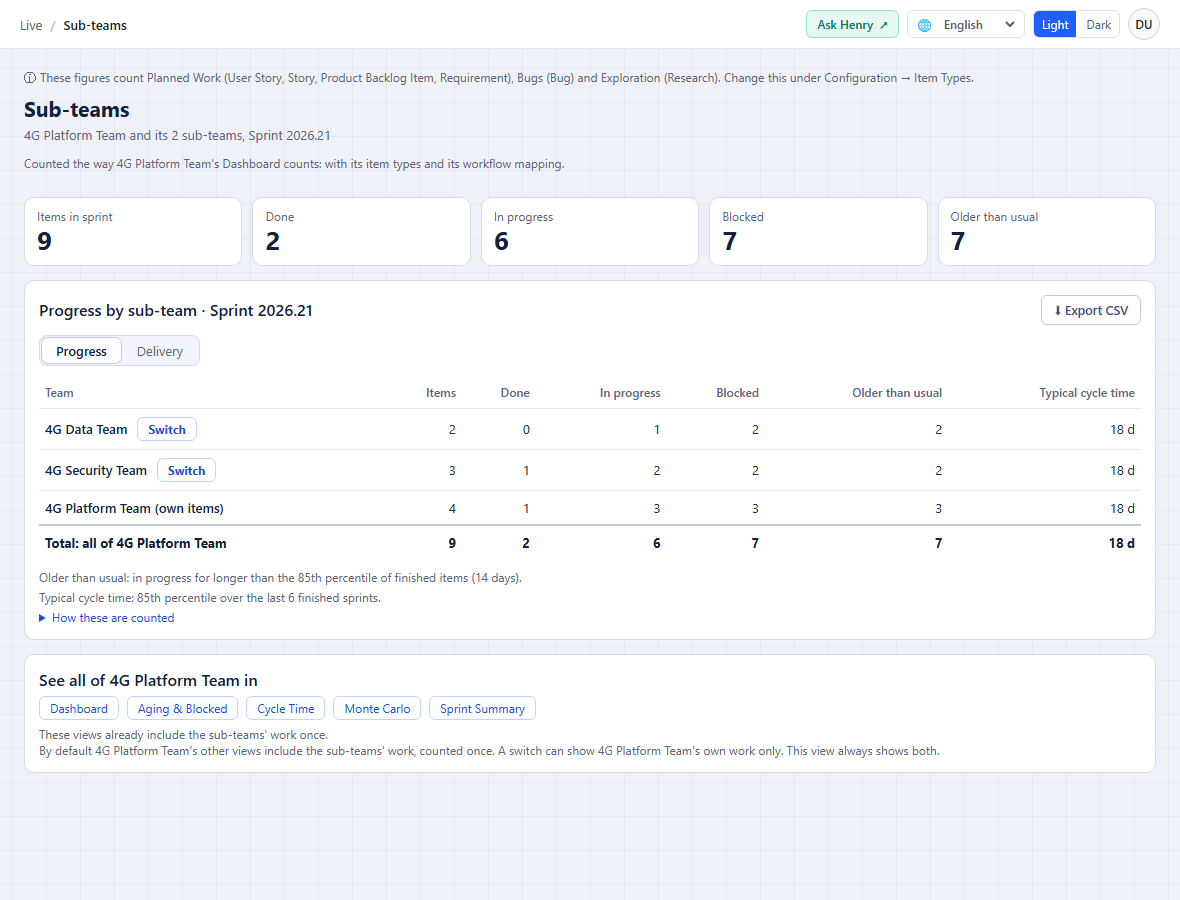
If your team has sub-teams, there is a new Sub-teams view right after Dashboard. It shows one row for each sub-team, plus the parent’s own items and a total, and every item is counted once. Teams without sub-teams do not see the view. The Progress tab comes first.
- For every row: items, done, in progress, blocked, older than usual (the same rule as Aging & Blocked) and cycle time.
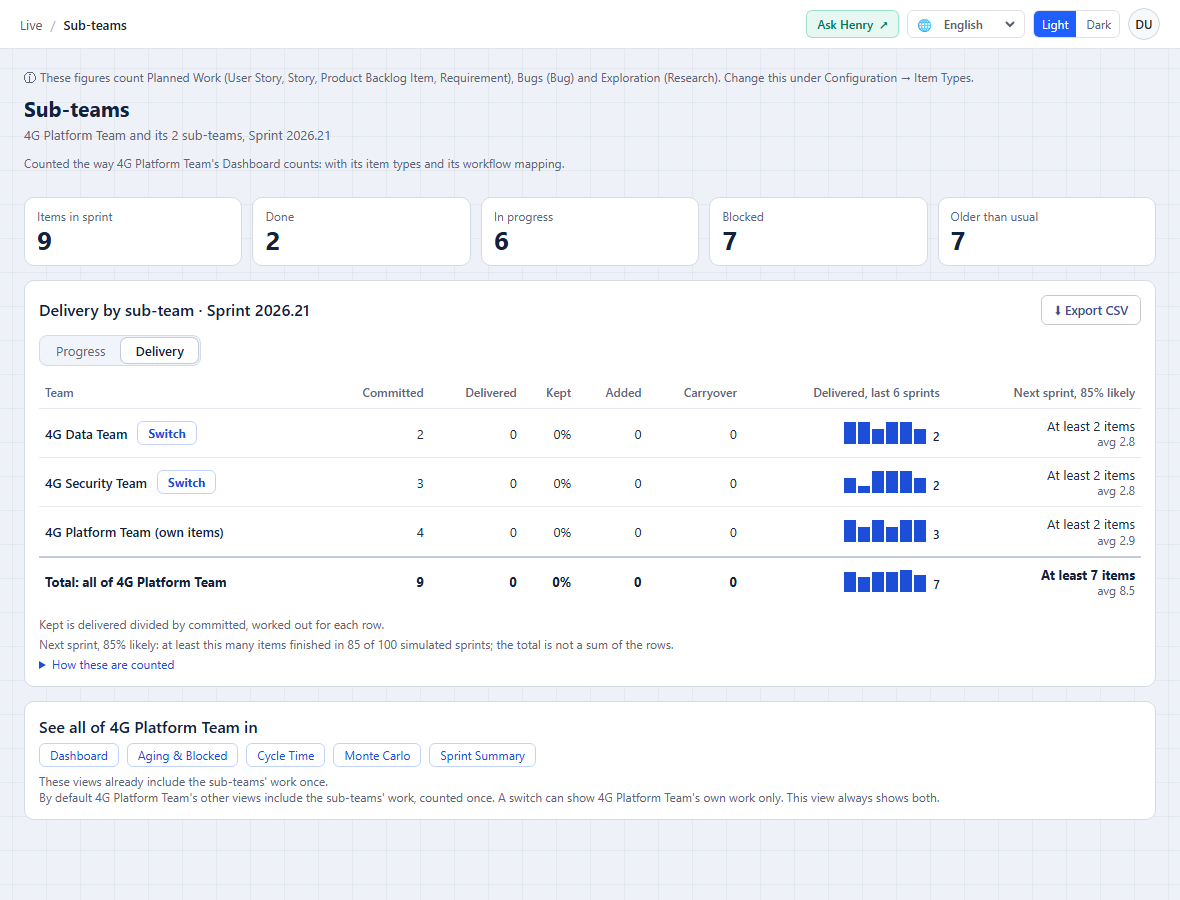
The Delivery tab looks at recent sprints instead.
- For every sub-team: committed, delivered, kept %, added, carryover, a delivered-per-sprint trend for the last 6 sprints, and a next-sprint forecast. The forecast reads “85% likely at least N items” and is based on the last 12 sprints.
- The Switch button opens that sub-team’s Dashboard, and you can export the view to CSV.
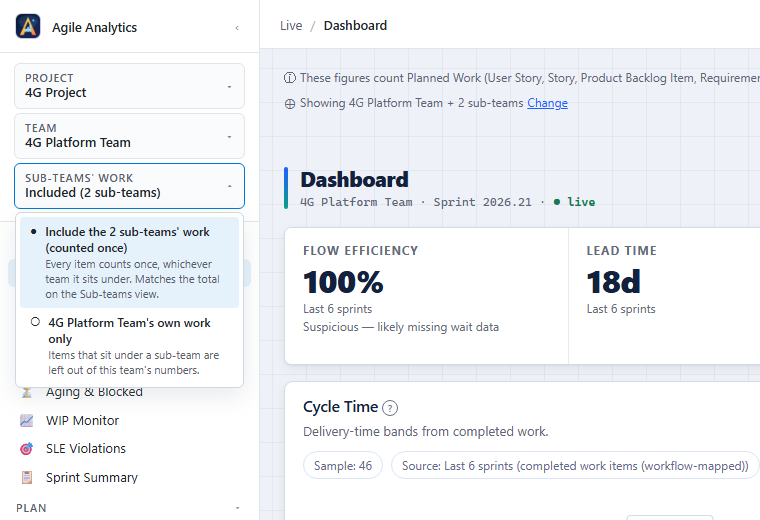
Choose whether the parent includes its sub-teams’ work
Parent teams get a new switch in the sidebar, under the team picker: Sub-teams’ work: Included (2 sub-teams) or Not included. It is set to Included. Included means the parent’s views count the sub-teams’ work once, the way Azure DevOps shows the parent’s backlog. Not included means every sprint view shows the parent’s own work only.
- The setting is shared by the whole team, so everyone sees the same numbers.
- Only Agile Analytics admins can change it.
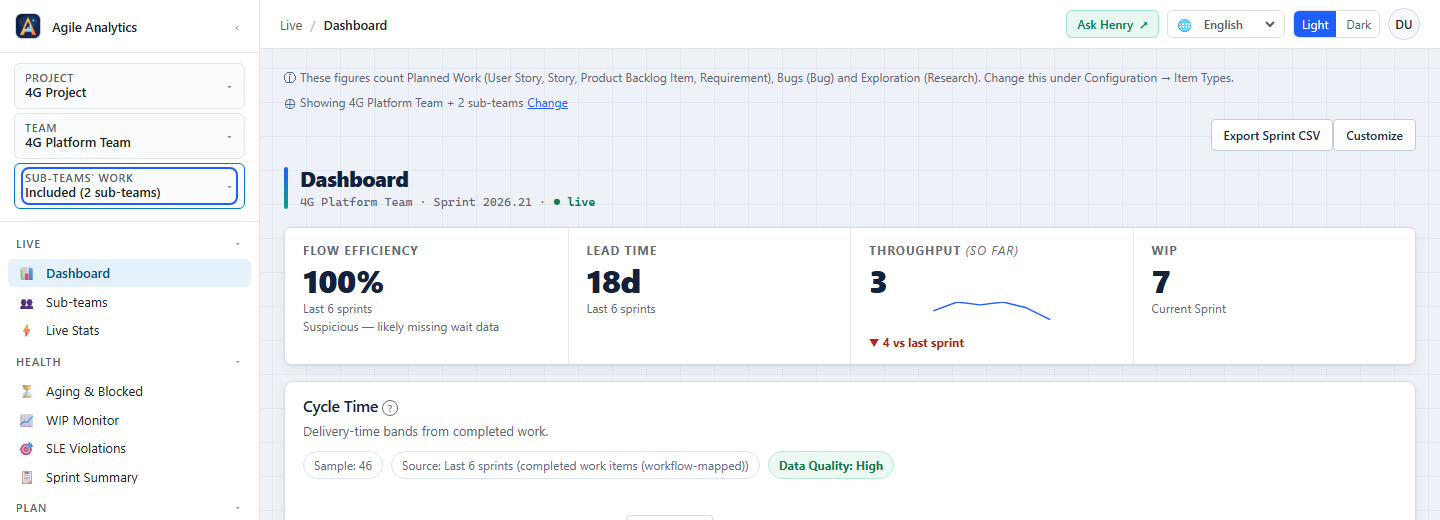
Every sprint view says what it shows
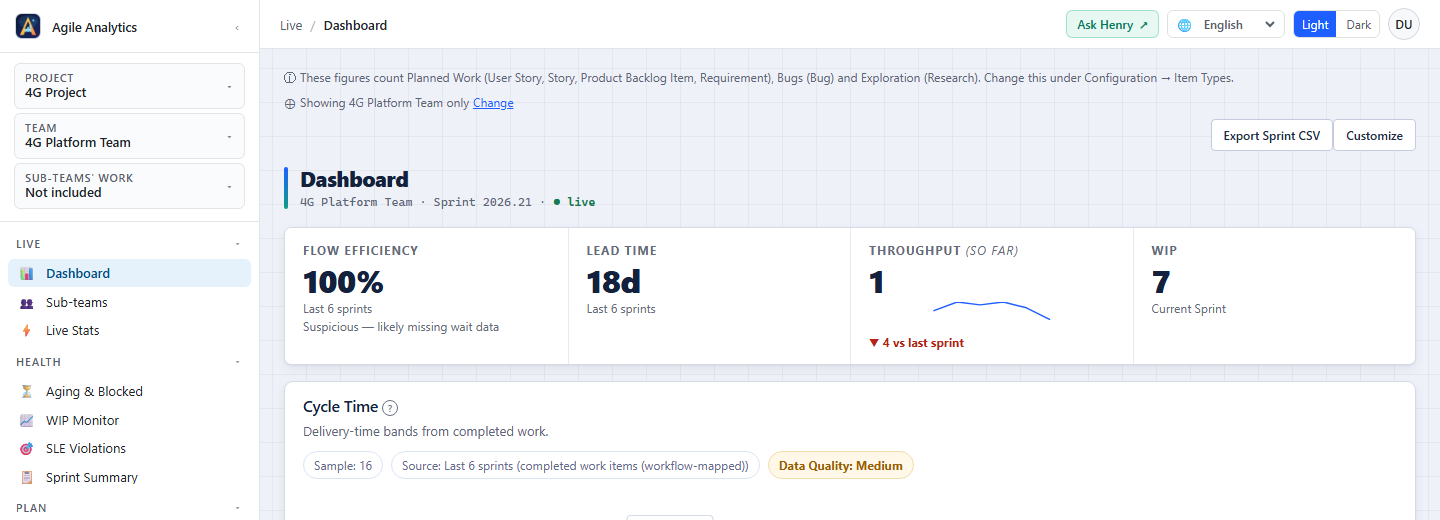
Under the header, each sprint view tells you which one you are looking at: “Showing {team} + 2 sub-teams” when the sub-teams’ work is included, or “Showing {team} only” when it is not. Admins also see a Change link next to it.
- The line describes the team that view is showing, including a team picked in the view’s own team list.
- It is left out when a view shows all teams or several at once.
- Sprint Summary and Exec Report show it for each of their teams.
- The Sprint Summary and Exec Report CSVs gain a scope column for these teams.
With the switch on Not included, the same line says so.
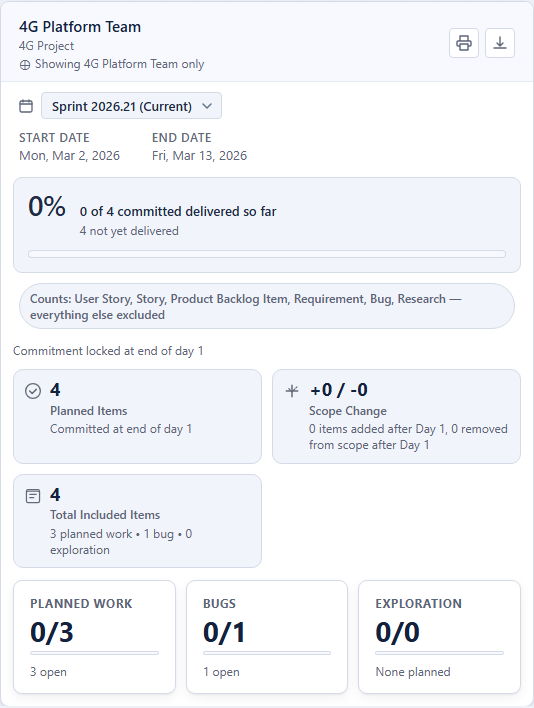
Sprint Summary shows the line on the card of each team it covers.
Which numbers change, and in which direction
This applies to parent teams whose area includes their sub-teams’ areas, with the switch on Included. Sprint Summary’s committed, added mid-sprint, removed, carryover and commitment reliability, and Cumulative Flow, now count the sub-teams’ work too. Dashboard, Aging, Cycle Time, Monte Carlo and the other views already did.
- Before, sub-team items were missing from committed but counted as added, so scope change looked too high.
- Now committed goes up and added goes down. Carryover and commitment reliability now include the sub-teams’ work, so they describe the whole team.
- If you want the old own-work-only picture everywhere, turn the switch to Not included.
- Dashboard commitment figures for these teams no longer depend on which view you opened first.
- Monte Carlo warns you when a parent team and its own sub-teams are selected together, because the parent already includes them.
Who sees no change
Teams without sub-teams, project default teams, and parent teams whose area does not include their sub-teams’ areas see no change at all. Azure DevOps dashboard widgets are unchanged.
See who changed it
Every change to the switch is recorded in the admin activity log under Configuration → Access Control → Admin activity, with the setting, the new value and the team.

Teams from other projects in Exec Report and Cycle Time
Exec Report and Cycle Time can now include teams from other projects. Use Add Team in Exec Report, or choose Compare teams across projects in Cycle Time. Each team is counted with its own project’s Item Types and Workflow Mapping. If you do not add a team from another project, both views read and compute exactly as before.
Sprint Burnup counts only real estimates
The Sprint Burnup card no longer gives items without an estimate a made-up size. In Story Points mode an item with no estimate now counts as 0 points, and the card tells you how many items that is. Your Story Points totals go down if your team leaves items unestimated. Items mode is unchanged, and no other view is affected.
Privacy
When a team has sub-teams, we now record one anonymous usage signal saying it has them and roughly how many: 1, 2-3, 4-7 or 8+. We never record team names. The existing opt-out in Configuration → Privacy covers it. Work-item content stays in your Azure DevOps tenant.
Related: Privacy policy
What you need to do
Nothing is required. Azure DevOps updates the extension automatically. If a figure looks different after the update, use Ask Henry in the top bar.
Related: Service status