What is new in 6.65
This release adds AGAN AI, a helper panel that lives inside Agile Analytics. Most of it works in your browser without any AI: it checks your setup, counts stuck and blocked work, and finds features. You can also type a question and get an answer from an AI model, and AGAN AI can prepare a setup change for you to review. Nothing is ever saved until you confirm it. This guide walks through each part with screenshots from a test team.
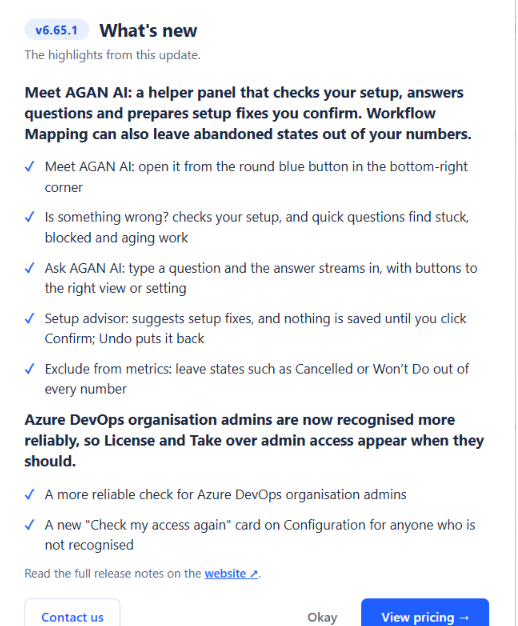
Meet AGAN AI
Open AGAN AI from the round blue button in the bottom-right corner of the hub, or from Ask about this view in any view header and on the Dashboard. A one-time note next to the button points it out the first time.
- On a wide screen the panel sits beside the view, so your chart stays in sight.
- On laptop-width screens it folds the sidebar for as long as it is open. On a phone it fills the screen.
- The top of the panel says which view and team it is looking at, for example "Now on: Dashboard · Platform Programme".
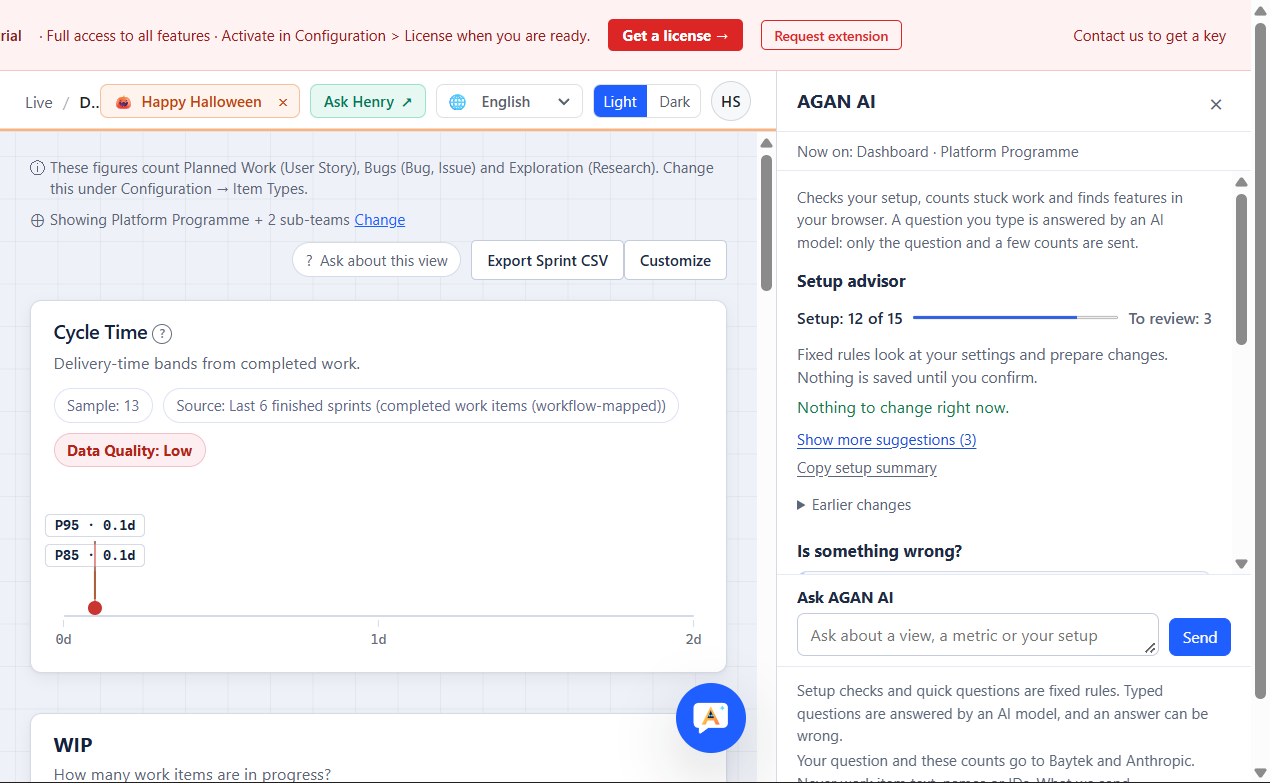
Is something wrong? Quick questions and Find a feature
These three parts of the panel use fixed rules and run in your browser. They keep working even when AI answers are off or your monthly AI allowance is used up.
- Is something wrong? checks your setup the way the Readiness tab does: workflow mapping not confirmed, states that are not mapped, a sprint that has ended but is still the current one, and work items that could not be read. Each check says why it matters for your numbers. Where a setting can fix it, Fix it here opens the right Configuration tab.
- Quick questions use the same rules as the views. Which items are not moving? matches the Stalled count on Aging & Blocked. What is blocked? uses your Blocked signals. What is aging past normal? uses your team’s own history. Old backlog items? matches Org Hygiene.
- Each quick answer shows the work item numbers, opens any of them in Azure DevOps, or opens all of them together.
- Find a feature: type what you are looking for, such as burndown, stuck items or velocity, and open the view or Configuration tab that does it.
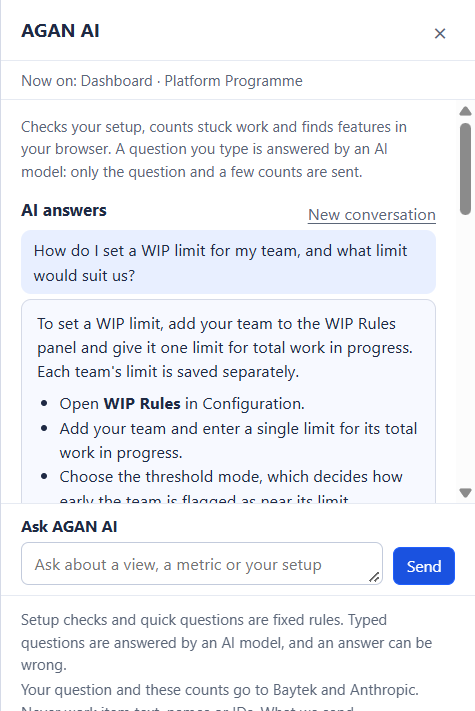
Ask AGAN AI
Type a question in the box at the bottom of the panel and the answer streams in. AGAN AI knows how every view, metric and setting works, and it can see a short list of counts about your setup, so its answers fit your team.
- Answers point you to the right view, Configuration tab, quick question or setup check, with a button for each.
- Rate every answer Helpful or Not helpful.
- Answers come from an AI model and can be wrong. The views and the documentation are always right.
- Each organisation has a monthly AI allowance, included in every plan and in the free trial. From 80% used the panel says so, and when it is used up the box explains why. AI answers come back on the 1st of the month.
The Setup advisor: fixes you confirm
At the top of the panel, the Setup advisor looks at your team’s setup and gives it a score, such as "Setup: 12 of 15". It prepares changes that would improve it, for example placing workflow states that are in no stage, a WIP limit a little above your usual work in progress, alert channels that send nothing, or a first service level.
- An answer to a question you type can also prepare one setup change for the team you asked about. It appears in the Setup advisor as a card labelled AI suggestion.
- Every suggestion, from the advisor or from AI, goes through the same safety checks before you see it.
- Not for us hides a suggestion you do not want.
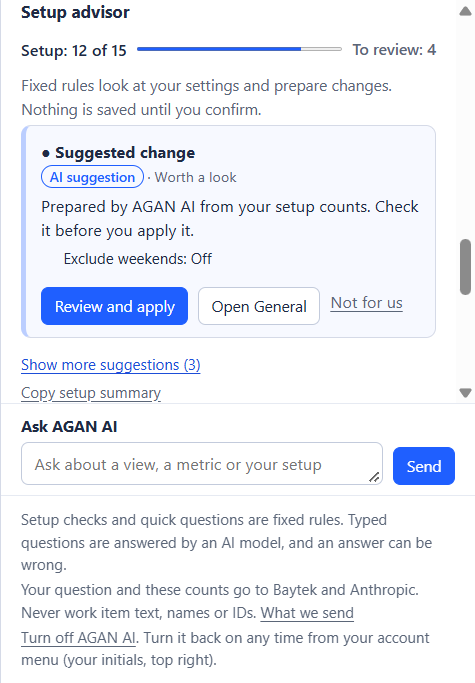
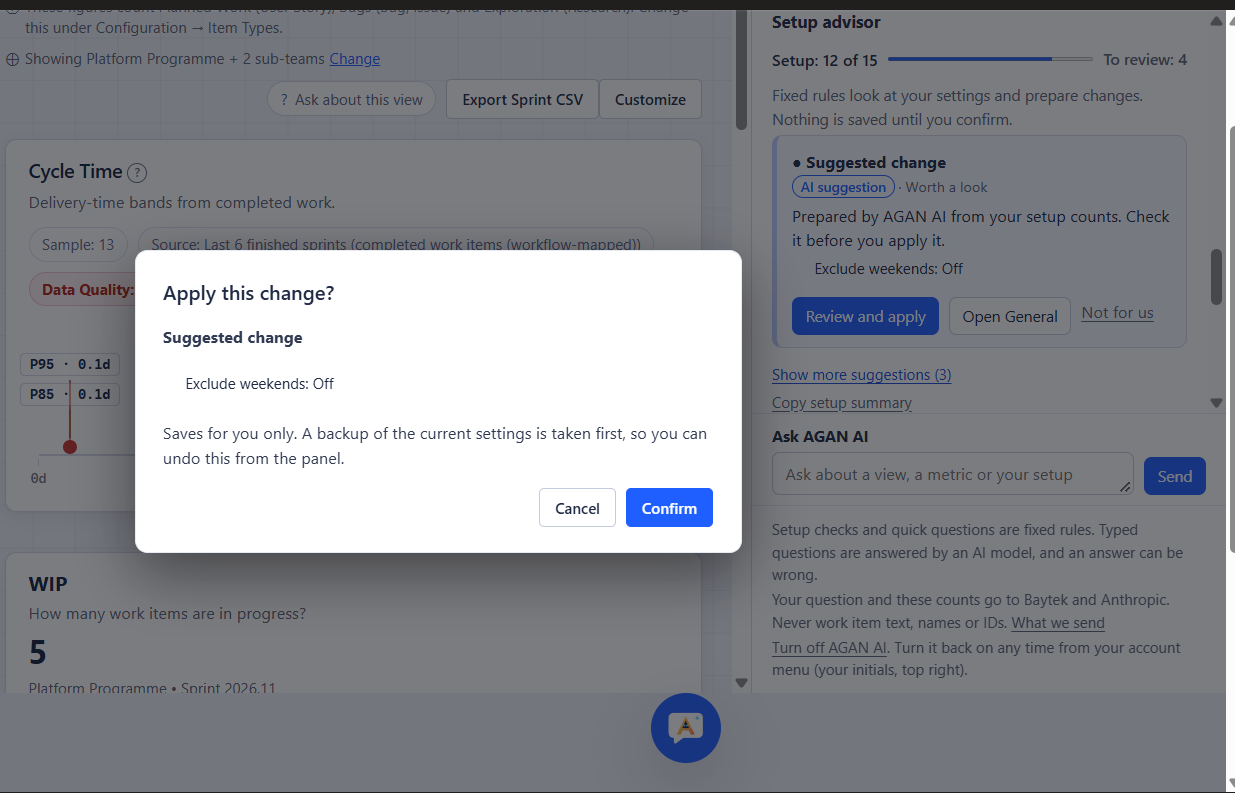
Nothing is saved until you click Review and apply, then Confirm. The confirmation says exactly what will change and who it saves for. A backup of your current settings is taken first.
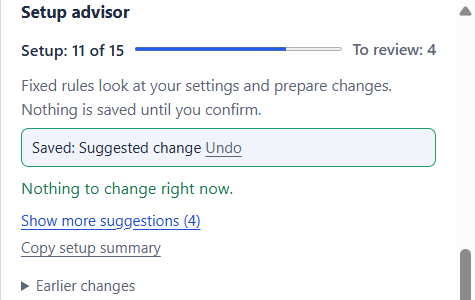
After you confirm, the panel says what was saved and offers Undo, which puts the earlier settings back. Earlier changes lists what you applied before, so you can undo those later too.
- Personal settings, such as your WIP limit, Exclude weekends and notification triggers, are saved for you only.
- Organisation settings, such as workflow mapping, service levels, DORA and Epic Analytics, need an Agile Analytics admin. Anyone else gets a summary to send to their admin.
- AGAN AI never prepares changes to licences, seats, access control, privacy or webhooks.
Your data and AGAN AI
The setup checks, quick questions, Find a feature and the Setup advisor are worked out in your browser from the data the views already read. Nothing leaves your browser for them.
- When you type a question, your question and a short list of counts and codes about your setup go to Baytek and to Anthropic, our AI provider, to answer it. That list includes your role, whether you have a seat, how many items each quick question found, and Setup advisor numbers such as your WIP limit. Item types and states are sent by their position in a list, never by name.
- Never sent: work item titles, descriptions, ID numbers, state names, team or project names, or people’s names.
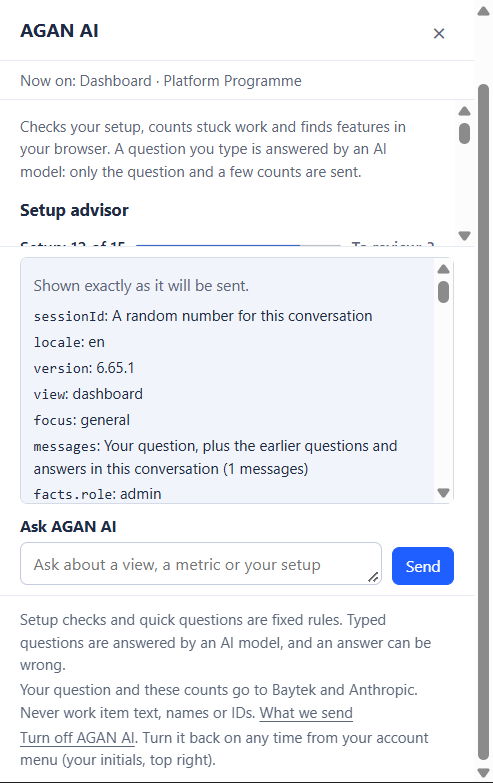
- What we send, under the box, lists every field with the value your next question will carry.
- If a question looks like it holds a work item title or ID, the box warns you before sending.
- Admins can turn AI answers off for the whole organisation in Configuration, Access Control. The checks, quick questions and Find a feature keep working.
Related: Privacy policy · Security
Turning AGAN AI off and on
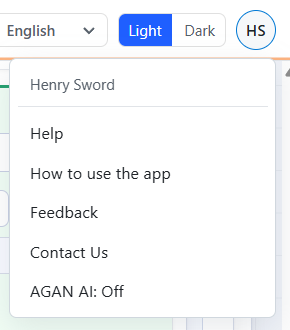
Each person decides for themselves. Click Turn off AGAN AI at the bottom of the panel, or use AGAN AI: On in your account menu (your initials, top right) to switch it off. The round button disappears. To bring it back, open the same menu and click AGAN AI: Off.
Exclude from metrics
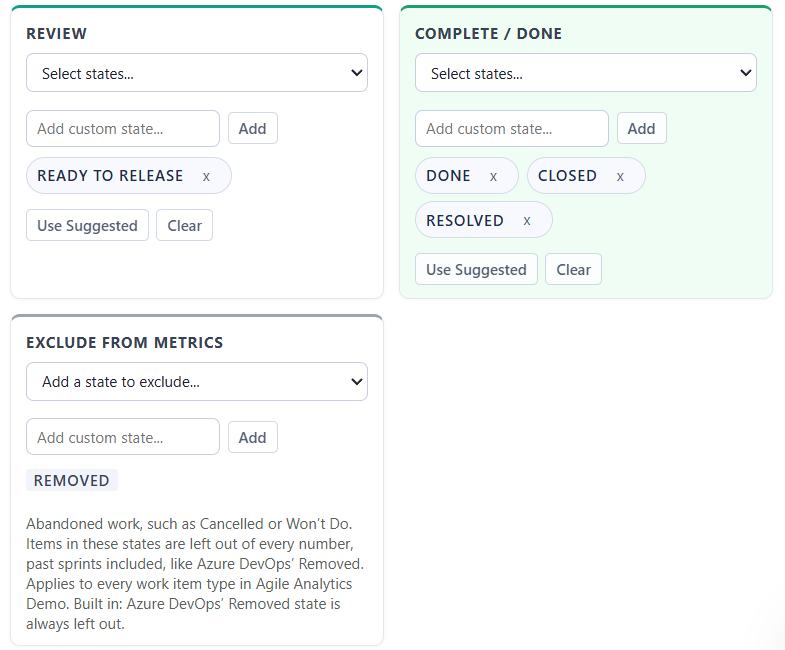
Some work is abandoned rather than finished, for example items moved to Cancelled or Won’t Do. In Configuration, Workflow Mapping, an admin can now list those states under Exclude from metrics for each project.
- Work items whose current state is on the list are left out of cycle time, lead time, throughput, flow efficiency, aging, WIP, forecasts, velocity, commitment, Sprint Summary, Epics and Features, DORA and more, past sprints included. This is the same way Azure DevOps’ own Removed state was already left out.
- Your workflow mapping itself is never changed.
- No number moves until an admin saves a list. If you never add a state, everything stays exactly as it was.
Organisation admins are recognised more reliably
Azure DevOps organisation administrators are now recognised more reliably, so the License tab and Take over admin access appear when they should.
- This includes admins who belong through an Azure AD group, or through a group inside a group.
- Only your organisation’s own Project Collection Administrators group counts, never a group with a similar name.
- Check my access again now appears only when Azure DevOps could not tell, and taking over admin access confirms when it is done.
What you need to do
Nothing is required. Azure DevOps updates the extension automatically, and your numbers do not change unless an admin saves an Exclude from metrics list. When you next open Agile Analytics, a What’s new note appears once. Open AGAN AI from the round blue button whenever you like. If something looks wrong, use Ask Henry in the top bar.
Related: Service status