A WIP limit in Azure DevOps is a number you type into a board column's settings. When the column holds more items than that number, Azure Boards shows the column count in red. It never blocks a card from moving. Setting a limit takes about a minute, so most of this post covers the harder part: getting a team to respect it.
What does a WIP limit do in Azure Boards?
A WIP limit is a soft cap on the number of work items in one board column. You can go over it and nothing stops you. When a column passes its limit, the board highlights the count so the team can react. What happens next is up to the team.
Microsoft's WIP limits article calls them "soft constraints", and the board quickstart says the column count turns red when a stage exceeds its limit. The board won't refuse a drag and drop, and its settings have no WIP notification. Most teams agree that nobody pulls new work into a red column until it clears.
How to set a WIP limit in Azure DevOps, step by step
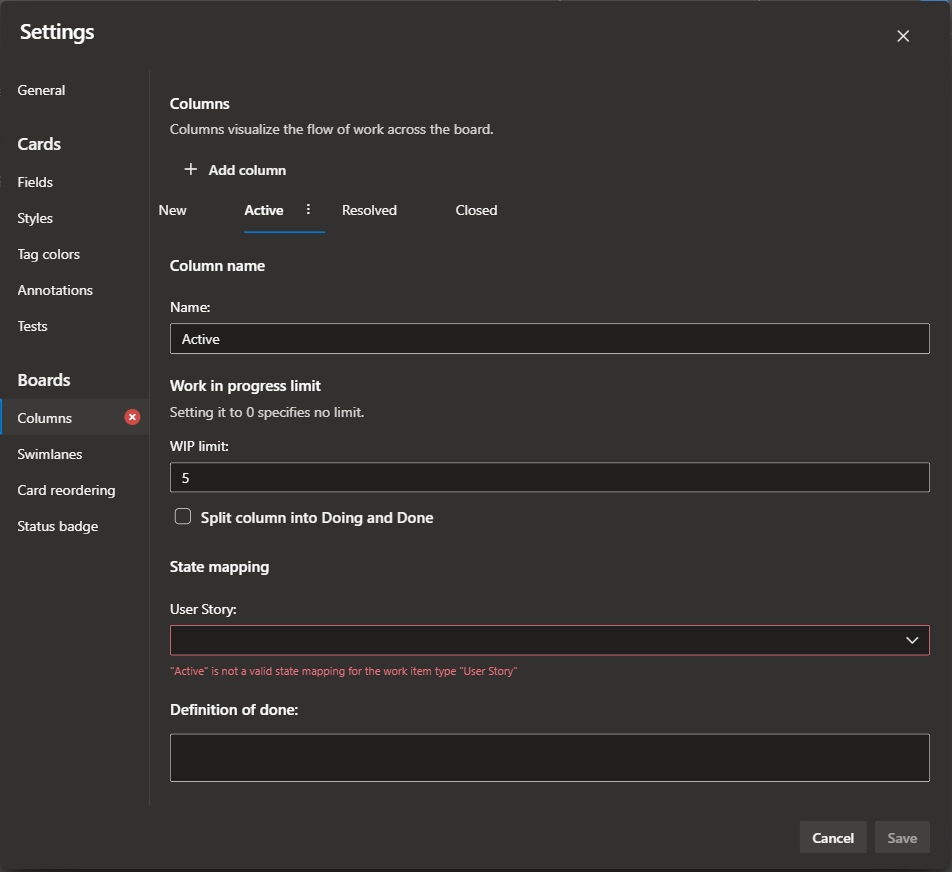
Open your team's board (the Kanban board in older docs), select the gear icon to open board settings, choose Columns, pick a column tab, enter the limit and save. You need at least Basic access and either the Team Administrator role or membership in the Project Administrators group. Each team sets its own limits on its own board. The steps, from the WIP limits article:
- Go to Boards > Boards and select your team.
- Select the gear icon (Configure board settings).
- Select Columns, then the tab for the column you want to limit.
- Enter the number in the WIP limit field.
- Repeat for each in-progress column, then select Save.
Map columns to how work really moves first (column mapping guide). Settings are per team: you can't share one board configuration across teams.
The settings offer one WIP field per column, with no separate limit per swimlane or person, so cards in an Expedite swimlane count against the same limit. Agree when an expedite card may push a column over. Bugs take slots too if your team tracks bugs as requirements; tracked as tasks, they appear on the Taskboard instead.
How do you choose the first WIP limit number?
Start with two to three items per person working in that stage, and lean toward the low end. Three developers at two items each gives the development column a limit of 6. Count what sits in each column today as your baseline. A low limit exposes bottlenecks quickly.
Those rules come from the WIP limits article. The cumulative flow guidance is stricter, at no more than two items in progress per team member. The second item covers the times the first one is stuck waiting on someone. For a team of 3 developers and 1 tester:
| Column | People in the stage | Starting limit |
|---|---|---|
| Develop | 3 | 6 |
| Test | 1 | 2 |
A limit is too high when the column never turns red but cards sit in it for days. It may be too low when people regularly have nothing to pull even after helping upstream; Microsoft says no bottlenecks at all can mean limits are too low. Its proven solutions tell idle people to help upstream instead of pulling new work, so idle time alone isn't a reason to raise the number.
Going over by 1 or 2 now and then is normal, per Microsoft. If a column is regularly 3 or more over, review the process or the limit, and do it in the retro instead of quietly raising the number.
Split columns and Done: what counts toward the limit?
Split columns divide a board column into Doing and Done, so finished work waits in plain sight for the next stage. Microsoft Learn's current pages explain how split columns work, but they don't say whether items in Done count toward the column's WIP limit. Test it on your own board before you pick the number.
What the columns article does document:
- You turn on split columns per column, with a checkbox on the column tab in board settings.
- Finished items move to Done; the next person pulls them into Doing in their column.
- Items piling up in Done mark a likely bottleneck.
- The Board Column Done field is
Falsein Doing andTruein Done, so you can query or chart each half.
The test takes two minutes. In any split column, watch the header count and drag one card from Doing to Done in the same column. If the count stays the same, Done items count toward the limit. Either way, a card in Done is still work in progress for the team, so set the number with the whole column in mind.
Why do teams ignore WIP limits, and what helps?
Teams ignore WIP limits because the signal is weak. A red number on a board nobody has open changes nothing, and the board lets anyone pull past it. Limits stick when the team agreed on them, looks at them every day, and has a rule for what happens when a column turns red.
Microsoft's challenges section lists the usual causes: people who prefer multitasking, uneven item sizes, pushing through bottlenecks instead of fixing them, and culture. What helps:
- Set the numbers together in a retro, so the team owns them.
- Agree on the red-column rule, for example: "When Test is red, developers stop pulling new stories and help test or review."
- Walk the board in the standup from right to left, closest to done first.
- Split big items before they start. A large story and a small bug take the same slot, which is where limits start to feel unfair.
- Make blocked work visible, since a blocked card still takes a slot. Our post on using a work item aging chart in standups shows how to spot blocked and stalled items.
- After several weeks, review the limits with data, as Microsoft suggests.
How WIP affects cycle time (Little's Law in one paragraph)
Little's Law says average cycle time equals average WIP divided by average throughput. A team with 12 items in progress that finishes 4 a week takes about 3 weeks per item on average. Cut WIP to 8 at the same throughput and the average falls to about 2 weeks.
Less WIP shortens cycle time only while throughput holds, so a limit low enough to starve a stage doesn't help. The formula describes long-run averages on a fairly stable system and won't predict any single item. Count WIP over the same states your cycle time measures, and note that adding up column limits doesn't give you system WIP. Microsoft's cumulative flow guidance states the same relationship: more WIP leads to longer cycle and lead times, less WIP to shorter ones.
Compare cycle time for the weeks before and after you set limits. Our post on cycle time and WIP as flow metrics covers reading the two together, and the guide to state categories explains how they decide when cycle time starts and stops.
Can you set WIP limits on a sprint board?
No. Azure DevOps supports WIP limits on the team board (Boards > Boards), at each backlog level, but not on the sprint Taskboard. The Taskboard lets you show bugs, add or rename columns, change card fields and add style rules; a WIP limit isn't one of the options. Scrum teams can use the team board, filtered to the sprint.
Those four options come from the Taskboard customization article. Each backlog level (stories, features, epics) has its own board with its own column limits. A Scrum team has two practical choices:
- Use the team board during the sprint. It shows backlog items (stories, PBIs or requirements), and you can filter it by sprint. Limits there count backlog items, not tasks. The filter is personal to each user, so check whether the column count follows it before you read it as sprint WIP.
- Stay on the Taskboard and add a style rule such as
Changed Date <= @Today-5, which highlights tasks nobody has changed in five days. It doesn't count WIP, but it catches the stale work that high WIP tends to produce.
What Agile Analytics adds, and what it doesn't
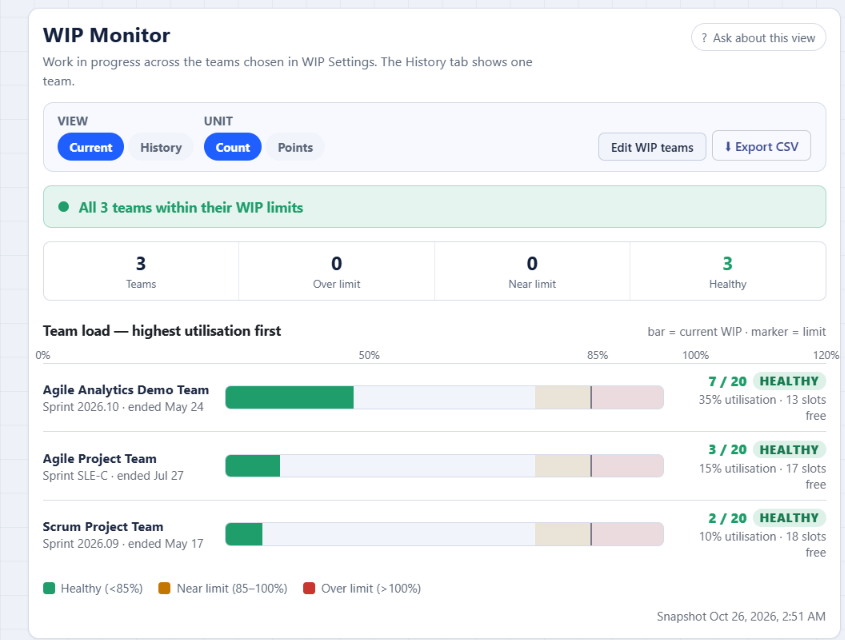
Agile Analytics is our Azure DevOps extension. Its WIP Monitor shows each team's work in progress against a limit you set for that team, and it can post to a Microsoft Teams or Slack channel when a team goes over. It reads the team's active sprint, and the board's own column limits stay as they are.
What it adds:
- A view across teams ("2 of 7 teams over their WIP limit") with a load chart marked at 85% and 100%.
- Alerts to a Teams or Slack incoming webhook per team, with optional near-limit warnings.
- Counts based on your saved workflow mapping, so a custom state like "Code Review" counts as in progress.
- WIP history at each sprint's midpoint (eight sprints by default), with CSV export.
- An Aging & Blocked view that groups items by days in their current status, with zones taken from your team's own P50 and P85 cycle time.
What it doesn't do:
- Limits live in its own WIP Rules panel, as one total limit per team, separate from your board's per-column limits.
- It counts only work in each team's active sprint. A team with no active sprint is shown as exactly that, so a Kanban team that doesn't run sprints gets no WIP verdict.
- Teams it can't read show as unchecked, never as healthy.
- It can't stop anyone from pulling a card.
It runs in your browser against the Azure DevOps REST API with read-only scopes, and work item content isn't sent to Baytek.
FAQ
What is a WIP limit in Azure DevOps?
It's a number set on a board column that caps how many work items should be in that stage. Azure Boards doesn't enforce it. When a column goes over, the count turns red so the team can finish work before starting more.
Do Done items in a split column count toward the WIP limit?
Microsoft Learn's current documentation doesn't say. Drag a card from Doing to Done in the same column and watch the header count: if it doesn't change, Done items count.
Can we get an alert in Teams or Slack when a column goes over the limit?
The WIP limits article describes no alert; the red count on the board is the only signal it documents. Board settings have no WIP notification option either.
Want each team's WIP posted to its Teams or Slack channel, with one view of which teams are over? Try Agile Analytics free for 30 days, no credit card needed.