Azure DevOps state categories are the five groups every workflow state belongs to: Proposed, In Progress, Resolved, Completed and Removed. State names are for people. Azure DevOps reads the category to draw boards, fill the backlog, and calculate cycle time, velocity and forecasts.
So when you add a custom state like "Ready for Test" or "Blocked," the category you pick decides whether that time counts as work, waiting or done. Pick wrong and the charts still render; they just measure something you didn't intend.
What are the state categories in Azure DevOps?
Azure DevOps has five state categories: Proposed for new work, In Progress for active work, Resolved for work that's implemented but not verified, Completed for finished work, and Removed for items you want off the backlog and board. Every state, inherited or custom, maps to exactly one of them, and backlogs, boards and widgets read the category.
From Microsoft's state categories page:
| Category | Meaning | Default states (Agile / Scrum / Basic / CMMI) | Backlog and board behavior |
|---|---|---|---|
| Proposed | New work, not started | New / New, Approved / To Do / Proposed | On the backlog; first board column |
| In Progress | Active work | Active / Committed / Doing / Active | On the backlog; middle board columns |
| Resolved | Implemented, not yet verified | Resolved (Bug) / none / none / Resolved (Bug, Issue, Review, Risk) | On the backlog and boards like In Progress, but left out of the velocity chart by default |
| Completed | Finished | Closed / Done / Done / Closed | Off the backlog; last board column |
| Removed | Cut from scope | Removed / Removed / none / none | Hidden from backlogs and boards |
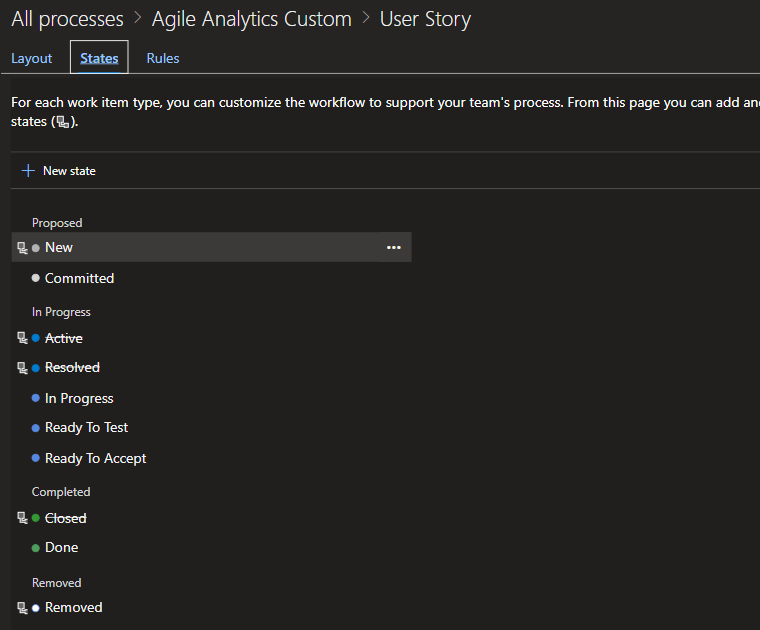
In CMMI, the Resolved state on Requirements, Features, Epics and Tasks sits in the In Progress category; only Bug, Issue, Review and Risk use the Resolved category. Agile User Stories, Features and Epics also have a Resolved state, but Microsoft's table doesn't say which category it uses. Check the States tab of your process, which groups states by category.
Categories also set two system fields: entering an In Progress state sets Activated Date, entering a Resolved state sets Resolved Date, and moving backward clears them (Microsoft Learn).
What rules about states and categories can't you change?
You can't rename the categories or change the name, color or category of an inherited state; you can only hide it. Each work item type allows one Completed state, up to 32 states, and at least one Proposed or In Progress state. Custom states can change category and color later, but not name.
The rule that does the most damage is the Completed category limit (workflow limitations). If you add a custom state to Completed, Microsoft says it "removes or hides any other state in that category." Add "Deployed" as Completed on User Story and Closed goes away. On an existing process, every item already in Closed is then left in a hidden, invalid state. Query those items before you add the state, test the change on a copy of the process, and check what a bulk move does to your velocity and cycle-time history before you do it in production.
Hiding a state doesn't move its items. They become invalid and can't be edited until their state changes, so first bulk edit them to a valid state. When you hide inherited states, keep at least one state in each category.
How do you add a custom state in Azure DevOps?
Open Organization settings, then Process, pick your inherited process, select the work item type, open States and choose New state. Enter a name, pick a category and a color, and save. Then each team maps the new state to a board column, or it won't show on their board. Following Microsoft's procedure:
- Make sure the project uses an inherited process; system processes can't be edited. See Azure DevOps process templates.
- Go to Organization settings > Process and select the inherited process.
- Select the work item type, for example User Story or Bug, and open States.
- Choose New state. If it's disabled, you lack the Edit process permission.
- Enter the name, choose the State category and a color, and select Save.
- Ask each team admin to open Boards > Configure board settings > Columns and map the state to a column. Unmapped states don't appear on the board.
Add the same state to every work item type that shares the board, often Bug as well as User Story or PBI. A state added to Task becomes a new Taskboard column for every team. The change applies to every project on that process, so Microsoft suggests trying it on a test process first.
Which category should your custom state use?
Ask one question: has the team started this work? If yes, use In Progress, even when the item is waiting on someone. Use Proposed only for states before work begins. Use Resolved only if you want the item to drop out of velocity until it's verified, and give Completed to the single state that means done.
Common custom states, with effects taken from Microsoft's docs on cycle time, velocity and the Forecast tool.
| Custom state | Recommended category | Cycle time | Velocity | Forecast tool (see caveat below) |
|---|---|---|---|---|
| Ready for Development / Approved | Proposed | Clock hasn't started | Not in Completed or Incomplete until work starts | Counted as not-started work |
| In Review | In Progress | Clock keeps running | Shows as Incomplete until Completed | Not counted (already started) |
| Ready for Test | In Progress (Resolved only if you want "built, not verified" tracked separately) | Clock keeps running in either category | In Progress: Incomplete. Resolved: drops out of the chart unless your view treats Resolved as Completed | Not counted in either category |
| Blocked | In Progress, or better, a field or tag instead of a state | Clock keeps running; blocked time is part of delivery | Shows as Incomplete | Not counted (already started) |
| Waiting for Customer | In Progress | Clock keeps running | Shows as Incomplete | Not counted (already started) |
| Deployed | Completed, replacing Closed/Done, only if "done" means "in production" (existing Closed items become invalid) | Clock stops at Deployed instead of Closed | Credit goes to the sprint the item reached Deployed; more items may land as Completed Late | Off the backlog, so out of the forecast |
Putting Ready for Test in Resolved leaves the cycle-time clock unchanged. Velocity changes: Resolved items are left out of Completed, Completed Late and Incomplete unless the chart treats Resolved as Completed, so work in test vanishes from the sprint picture. That's why I default to In Progress.
Don't put Blocked in Proposed. Moving an item back to a Proposed state clears Activated Date and returns it to not-started work, which the Forecast tool counts again. Cycle time still runs from the first activation, so nothing gets faster; it only looks unstarted. To keep blocked and stuck items in view without a separate state, see using the work item aging chart in standups.
Deployed is tricky because only one state fits in Completed. Put Deployed in In Progress after Closed and moving an item there reopens it; it stops counting as finished until someone closes it again. Pick one definition of done and put that state in Completed.
How do state categories change cycle time, velocity and forecasts?
Cycle time runs from the first In Progress or Resolved entry to the last Completed entry. Velocity counts Completed items and shows In Progress items as Incomplete, leaving out Proposed and Resolved. The Forecast tool only places work that hasn't started. Every built-in chart reads the category, so two states in the same category count the same way.
Cycle time
The Cycle Time widget starts the clock the first time an item enters an In Progress or Resolved category and stops it the final time it enters Completed. A reopened item keeps its original start, and the time it sat closed counts too (Microsoft Learn). In Scrum, Committed is the first In Progress state, so cycle time starts when an item is committed, which may be before anyone starts building it. See flow analytics for cycle time and WIP for reading the two together.
Velocity
Velocity credits the sprint in which an item reached Completed. In Progress items in the sprint show as Incomplete. Proposed and Resolved items aren't counted in Completed, Completed Late or Incomplete (Microsoft Learn). An item in a state that looks done but isn't in the Completed category never earns velocity credit. More on reading the chart in the Azure DevOps velocity chart.
Forecast tool
The backlog Forecast tool places only items that haven't started. Microsoft's steps say it ignores Scrum items in Committed or Done, and Agile and CMMI items in Active, Resolved or Completed; the In Progress Items toggle just hides or shows those uncounted items (Microsoft Learn). The same page's overview, though, says items in Proposed or In Progress are included. Turn the toggle on and check where the forecast lines fall before you trust them.
Why do my metrics look wrong after adding a state?
The usual symptoms and their causes:
| Symptom | Likely cause |
|---|---|
| Velocity dropped after adding a test state | The state is in Resolved, so items in it count as neither Completed nor Incomplete |
| Items in a done-looking state earn no velocity | That state isn't in the Completed category |
| Closed disappeared and old items look invalid | A custom state was added to Completed |
| The new state's items are missing from the board | The state isn't mapped to a board column |
| Cycle time looks long in Scrum | The clock starts at Committed |
| The forecast suddenly includes work you'd started | Items were moved back to a Proposed state |
After a change, spot-check a few closed items that never moved backward: Closed Date minus Activated Date should match the Cycle Time widget. Activated Date resets whenever an item re-enters In Progress, and an item that skips straight to Resolved never gets one, so for those items use the History tab to find the first In Progress or Resolved transition.
Where does waiting time hide in Azure DevOps?
Azure DevOps has no waiting category, so waiting states belong in In Progress and count toward cycle time. Ready for Test, In Review or Waiting for Customer time counts the same as hands-on work. That's correct for delivery speed, but you can't see from cycle time alone how much of it was waiting.
Moving those states to Proposed doesn't shorten cycle time, which still runs from the first activation. It does clear Activated Date and put started work back into the Forecast tool's not-started pool. Two built-in options work better:
- Split board columns into Doing and Done. Items sitting in the Done half of a column are finished at that stage and waiting for the next one. You can query them with the Board Column Done field (Microsoft Learn).
- Watch the cumulative flow diagram, where a band that keeps getting wider shows where items pile up.
Neither gives you the share of cycle time spent waiting, which needs time-in-state data classified as active or waiting.
What Agile Analytics adds, and what it doesn't
Agile Analytics maps your Azure DevOps states, including custom ones, to six stages: New, Queued, In Progress, Test, Review and Done. Queued counts as waiting. Cycle time, flow efficiency, WIP, aging and forecasts all read that mapping instead of the state category alone.
Expect its cycle time to differ from the built-in widget where Queued states exist, because time before the first active stage isn't counted. From the workflow mapping docs:
- On first open it reads your states and categories and proposes a mapping, recognizing state names in 9 languages. It only fills an empty mapping and won't overwrite your edits.
- Flow efficiency also reads the state name. States starting with "Ready to," "Ready for" or "Awaiting," and states like Pending, On hold, Blocked or Queued, count as waiting even if they're mapped to an active stage.
- A live preview shows which states start and stop the cycle-time clock before you save. Mappings can be set per work item type, and an organization admin confirms them.
- Removed items stay unmapped by default so they don't inflate throughput.
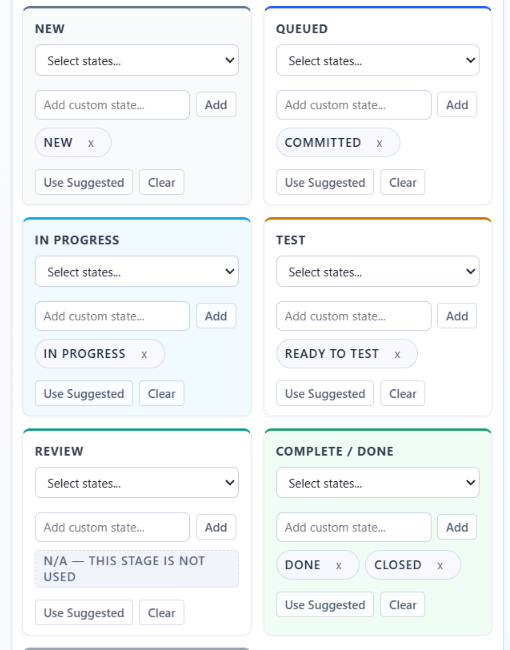
What it doesn't do: it doesn't change your process, your states or the built-in widgets. It uses read-only scopes, so a Ready for Test state in the wrong category still affects Azure DevOps' own velocity chart until you fix it in the process. It works with Azure DevOps Services only, not Azure DevOps Server.
FAQ
Can I add a new state category in Azure DevOps?
No. Category names are fixed. You can add custom states, up to 32 per work item type, and assign each to an existing category.
Why did Closed disappear when I added a custom Done state?
Each work item type allows only one state in the Completed category. Adding a custom state there removes or hides the other one. Move the custom state to another category, or keep it as your single Done state.
Should Ready for Test be In Progress or Resolved?
Both start the cycle-time clock. In Progress keeps the item visible as Incomplete on the velocity chart, while Resolved drops it out of velocity until it's verified. Most teams want In Progress.
Does changing a state's category recalculate past cycle time?
Microsoft doesn't say how Analytics treats history after a category change. Before changing a category on a busy process, export the cycle time data you rely on, change it on a test process first, and compare a few items before and after.
Want to see your custom states sorted into active and waiting time? Start the 30-day Agile Analytics trial. No card needed, the whole organization gets access, and the Workflow Mapping screen shows how each state counts before you save anything.