Azure DevOps forecasting has one built-in tool for backlog forecasting: the Forecast option on your product backlog. You type in a single velocity number and it draws lines showing which backlog items fit into each future sprint. It can't tell you how likely a date is, because one number can only produce one date. To answer "when will it be done?" with a probability, a Monte Carlo forecast runs your real sprint history thousands of times and gives you a range of dates.
How does the Azure DevOps Forecast tool work?
The Forecast tool takes one velocity value you enter, then walks down your ordered backlog adding up each item's estimate until it hits that value. Where it does, it draws a sprint line. Unused velocity carries over to the next sprint. It ignores items already in progress or done, and it only uses the future sprints your team has selected.
The tool is deterministic: the same velocity always draws the same lines, and it reports no probability. According to Microsoft's Forecast documentation, it reads the estimate field for your process (Effort, Story Points or Size). Some people search for it as the Azure forecasting tool. In Microsoft's example (velocity 20), a sprint that fills only 13 points passes the unused 7 to the next sprint. Also worth knowing:
- It works per team, following your team's area path and iteration settings.
- Microsoft lists its limits: forecasts don't adjust for team changes, don't see external dependencies, and are only as good as your estimates.
- You pick the velocity. Microsoft suggests the average of your last 3 to 6 sprints, taken from the Velocity chart.
For what that velocity number actually counts, see our guide to the Azure DevOps velocity chart.
How do you turn on forecasting in Azure DevOps?
Open Boards > Backlogs, pick your team, make sure you're on the product backlog level, then open view options and switch Forecasting to On. Enter a velocity in the box that appears. You need to be a project member in the Contributors group with at least Basic access, and your team needs future sprints selected. Step by step, following Microsoft's procedure:
- Go to Boards > Backlogs and choose your team from the team selector.
- Check the backlog level: Stories (Agile), Backlog items (Scrum), Requirements (CMMI) or Issues (Basic).
- Open the view options icon and slide Forecasting to On.
- Set In Progress Items to Off. The forecast doesn't count them anyway.
- Enter your team's velocity. The tool draws a line for each future sprint the team has selected.
Why is the Azure DevOps forecast not showing results?
Microsoft's troubleshooting and setup notes point to five common causes: no future sprints selected for the team, items in states the tool ignores, missing estimates, the wrong area path or backlog level, or sprints of different lengths. Each has a quick fix in team settings or on the work items themselves.
Causes and fixes come from the Forecast article; the symptom column is our own wording.
| What you see | Likely cause | Fix |
|---|---|---|
| No forecast lines, or only one | Not enough future sprints selected for the team | In team settings, select future iterations to cover the whole backlog |
| Items you expected are missing from the forecast | They're in Committed/Done (Scrum) or Active/Resolved/Completed (Agile, CMMI) | Working as designed. The tool forecasts only work not yet started |
| Lines bunch up or skip items | Some items have no estimate | Add Effort, Story Points or Size to every item |
| Another team's work appears, or yours is missing | Team area path settings | Check the team's default area path and whether sub-areas are included |
| Items don't show where you expect | Wrong backlog level, or backlog items nested under other backlog items | Switch to the product backlog level; keep items flat and group them under Features |
| Bugs aren't counted | Team bug setting | Decide whether bugs appear on the backlog; only then are they forecast |
| Forecast drifts badly from reality | Uneven sprint lengths, too little velocity history, team changes | Use equal-length sprints, a 3 to 6 sprint average, and re-forecast each sprint |
Also question the forecast wherever one item's estimate is near or above your velocity, as Microsoft advises.
What's wrong with forecasting based on velocity alone?
One velocity number gives you one date and no sense of how likely it is. Real sprints vary. Choose a different, equally defensible velocity from the same history and the date moves by weeks. The tool can't tell you which of those dates to believe, because it never looks at the spread.
A team has 126 story points left in a release. Sprints are two weeks, and the first forecast sprint starts Monday, January 4, 2027. Its last six sprints delivered:
| Sprint | -6 | -5 | -4 | -3 | -2 | -1 |
|---|---|---|---|---|---|---|
| Points completed | 7 | 27 | 14 | 30 | 12 | 18 |
The six-sprint average is 18. Now plug three reasonable velocities into the Forecast tool:
| Velocity entered | Where it comes from | Sprints to finish 126 points | Last sprint ends |
|---|---|---|---|
| 27 | "We just had a good sprint" | 5 | Friday, March 12, 2027 |
| 18 | Six-sprint average | 7 | Friday, April 9, 2027 |
| 14 | "Plan for a slow quarter" | 9 | Friday, May 7, 2027 |
Nothing changed between those rows except who typed the number, yet the date moves across eight weeks. Many teams type the average because it feels safe. Here the average-velocity date turns out to be a coin flip. With the same history and a 120-point backlog it would be a 61% date, and with 130 points a 73% date, because rounding up adds slack. The tool shows none of those numbers.
What is Monte Carlo forecasting, in plain language?
Monte Carlo forecasting replays your team's past sprints at random, thousands of times, to see how long the remaining work takes in each replay. Instead of one velocity, it uses every sprint you actually had. The result is a spread of finish dates, and you read off the date that a chosen share of replays beat.
For the team above, one simulated future might draw sprints of 14, 30, 7, 18, 27, 12 and 18 points. That replay reaches exactly 126 points in sprint 7. Another draws 7, 12, 14, 7, 18, 27, 12, 30 and needs 8 sprints. Run 10,000 of these and count the finishers by each sprint:
| Finished by the end of sprint | Date | Share of runs done by then |
|---|---|---|
| 6 | March 26, 2027 | 19.5% |
| 7 | April 9, 2027 | 50.3% |
| 8 | April 23, 2027 | 78.3% |
| 9 | May 7, 2027 | 93.4% |
| 10 | May 21, 2027 | 98.6% |
April 9 sits almost exactly on the P50: 50.3% of runs finish by then, so a rerun of the simulation can land on April 23 instead. The P85 is May 7 and the P95 is May 21. The Forecast tool showed April 9 with no hint that it was a 50/50 date. The P85 matches the velocity-14 "slow quarter" guess, but only the simulation says how confident that date is.
The simulation has three caveats. It assumes the next sprints look like the last six, so a reorg or a holiday block will skew it. It treats the backlog as fixed at 126 points, so if work usually gets added mid-release, add the typical growth or re-run the forecast each sprint with the current size. And it can never draw a sprint worse than 7 or better than 30 points, so real outcomes can spread wider than the simulated ones.
P50, P85 or P95: which date should you give stakeholders?
Give stakeholders the P85 date and keep the P50 for internal planning. A P50 date is a coin flip: you will miss it about half the time. The P85 is the earliest date by which at least 85 of 100 simulated futures have finished. Use P95 only when missing the date costs far more than the buffer. A rule of thumb:
| Level | Meaning | Use it for |
|---|---|---|
| P50 | At least half of runs finish by this date | Internal planning and what-if talk |
| P85 | At least 85% of runs finish by this date | Dates you tell stakeholders |
| P95 | At least 95% of runs finish by this date | Contracts, regulatory dates, launches with fixed costs |
Because work finishes in whole sprints, the levels jump. In the example, 78% of runs finish by April 23 and 93% by May 7, so May 7 is both the P85 and the P90. You could tell leadership "most likely April 9, and 85% confident (93% of runs, in fact) by May 7." The four weeks between those dates are the uncertainty in the work.
More on Monte Carlo and confidence levels: Monte Carlo forecasting for agile teams.
How do you run a Monte Carlo forecast on Azure DevOps data?
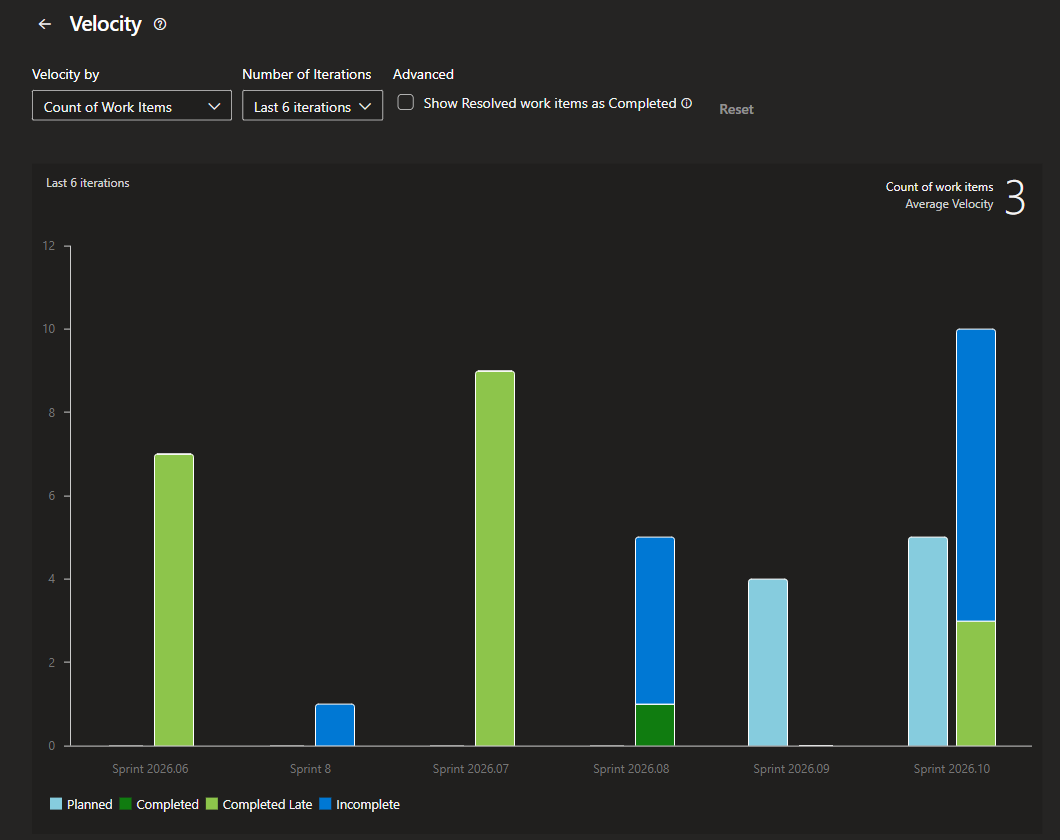
You need two inputs: completed work per sprint for your last 6 or more sprints (one or two give a very wide range), and the size of the remaining backlog in the same unit. Copy the history from the Velocity report, total the remaining backlog, then run the replays in a spreadsheet or a tool, as below.
Step 1: get your sprint history
Open Boards > Backlogs > Analytics and the full Velocity report. Choose count of work items or sum of Story Points, and use Custom iterations to show up to 15 sprints (Microsoft's velocity article). Hover each column to read the completed number. Velocity is credited to the sprint where an item was completed.
Step 2: pick one unit
Points work if your team estimates consistently. Throughput, the count of items finished per sprint, skips estimation and works well when items are split to a similar size. The backlog must use the same unit as the history.
Step 3: run the replays in Excel
Build the simulation in two sheets:
- On a sheet named History, put your six sprint values in A2:A7.
- On a second sheet, enter
=INDEX(History!$A$2:$A$7, RANDBETWEEN(1, 6))in B2. That's the first simulated sprint. - In C2, enter
=B2+INDEX(History!$A$2:$A$7, RANDBETWEEN(1, 6))and fill it right to S2. Each cell is now a running total. You need at least as many columns as your backlog divided by your smallest sprint (126 / 7 = 18 here, B to S). - In T2,
=MATCH(TRUE, INDEX(B2:S2>=126, 0), 0)returns the sprint in which that run finishes. - Fill rows 2 to 10001 down for 10,000 runs.
- For each sprint count n,
=COUNTIF($T$2:$T$10001, "<="&n)/10000gives the share of runs done by sprint n. P50, P85 and P95 are the first sprints where that share reaches 50%, 85% and 95%. (PERCENTILE.INCcan return in-between values like 7.5, so count shares instead.)
RANDBETWEEN recalculates on every edit, so the shares move a little each time. Use Paste Values before you present them.
Step 4: drop outliers on purpose
Leave out a holiday or incident sprint, and say so.
What Agile Analytics adds, and what it doesn't
Agile Analytics is our Azure DevOps extension. It runs the Monte Carlo replays for you from your team's finished-sprint throughput, 10,000 trials per forecast, and shows P50, P70, P85 and P95. We also publish a free dashboard widget that forecasts next sprint only. Neither one changes your work items or the built-in Forecast tool.
The free Monte Carlo Sprint Forecast widget answers one question: how many items will this team finish next sprint? It simulates 10,000 sprints from throughput in up to 12 recent completed sprints and shows the count at 85% and 50% confidence, plus a chart. It needs no account or license key. Its limits, from its listing: it doesn't forecast dates or whole backlogs, its done states and work item types are fixed, and a team with no completed sprints sees a message instead of a number.
In the paid extension, the Monte Carlo forecasting view adds the two questions this article is about:
- "When will it finish?": enter a backlog size as a number of items, get a date range from P50 (earliest) to P95 (latest).
- "How many by a date?": enter a target date, get the item count at each confidence level.
- It lists your ten most recent finished sprints, preselects six, and lets you drop an outlier.
- It uses your own workflow state mappings, which the free widget can't.
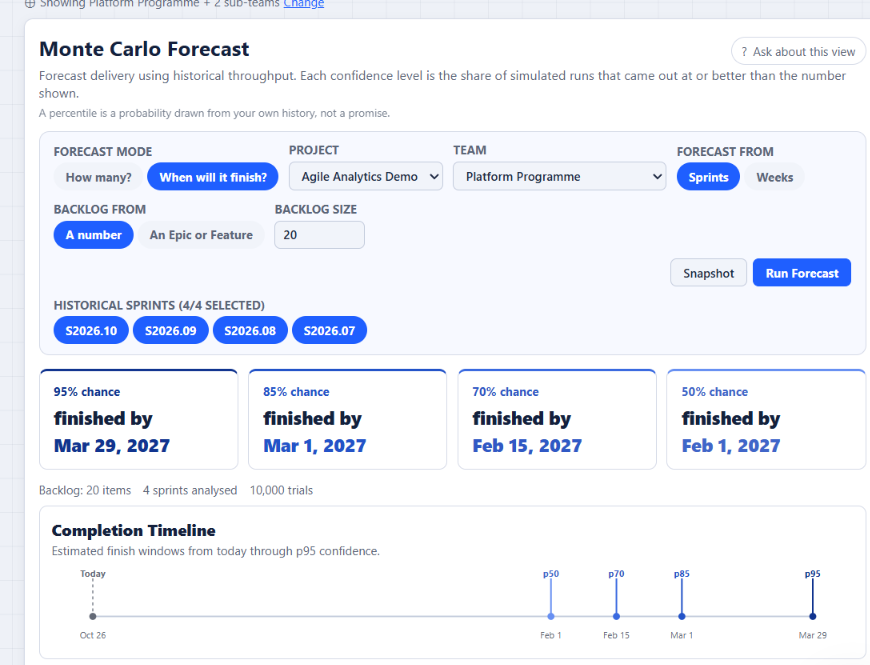
What it doesn't do: it forecasts item counts, not story points, so count your remaining items instead of summing points. It can't create certainty from thin history, so one or two finished sprints give a very wide range. It doesn't detect holiday or reorg sprints; you exclude those yourself. It runs on Azure DevOps Services only, not Azure DevOps Server. It reads data with four read-only scopes in your browser; work item content doesn't reach us. We don't hold SOC 2 or ISO 27001 certification today.
FAQ
Does Azure DevOps have a built-in Monte Carlo forecast?
Not in Azure Boards. The built-in Forecast tool on the product backlog uses one velocity number you enter, and Microsoft's documentation for it describes no probabilistic or Monte Carlo option. For P50 or P85 dates, run the simulation yourself (for example in Excel) or use a Marketplace extension.
What velocity should I enter in the Forecast tool?
Microsoft recommends the average of your last 3 to 6 sprints, from the Velocity chart. Don't treat the resulting date as a promise; in our example it was a coin flip. If you need a date you can commit to, run the same history through a Monte Carlo forecast and use the P85.
Try it on your own backlog
For next sprint's range on a dashboard, add the free Monte Carlo Sprint Forecast widget. For P50 and P85 dates on a whole release, start the 30-day Agile Analytics trial from the Monte Carlo forecasting page. No card is needed, your whole organization gets access, and nothing is deleted when the trial ends.