The Azure DevOps burnup chart comes from the Burnup dashboard widget. It plots completed work rising toward a total scope line, so you can see progress and added scope as two separate things. If you plan an epic or release burnup, read the tagging note in the epic section first.
Burnup vs burndown: what does each one hide?
A burndown shows remaining work, and a burnup shows completed work. In Microsoft's words, the Burnup widget plots work completed and the Burndown widget plots work remaining; the other settings match except for a few display options. A burndown can hide added scope, because new work and finished work cancel out on the same line.
On a burndown, adding 10 points of work while the team finishes 10 points leaves the line flat. On a burnup, the completed line rises by 10 and the scope line also rises by 10, so you see the progress and the added scope. For sprint burndowns, see the burndown chart guide and why a burndown chart is empty.
How do you add the Burnup widget in Azure DevOps?
Add it from the dashboard widget catalog: open Dashboards, select Edit, search for Burnup and select Add. Then configure teams, work items, field criteria, the burnup method and dates. You need at least Basic access and permission to edit the dashboard, and Azure Boards must be enabled. Per Microsoft Learn:
- Select Dashboards, then Edit.
- Search for Burnup, select it, and select Add.
- Select Configure and fill in Teams, Work items, Field criteria, Burndown on, Time period and Plot interval.
- Turn on Show total scope, then select Save.
On Azure DevOps Server, Analytics must also be installed and enabled. Microsoft says viewing an Analytics widget on a dashboard needs no special permissions, so viewers don't need extra Analytics rights.
Which burnup settings change the numbers?
Four settings decide what the chart says: the count or sum method, the start date (which fixes the original scope), Show total scope, and Show Resolved work items as Completed. Microsoft's docs use burndown wording (Burndown on) for both widgets; your Burnup panel may say burnup.
Count uses the number of work items. Sum totals any integer or decimal field; Microsoft says size fields like Story Points work best. If you sum Remaining Work on tasks, Items not estimated grows as items close (source). With Sum, re-estimating an existing item also moves the total scope line, so a bigger estimate shows up as scope increase.
The start date sets the original scope baseline, and the end date is your target. Percentage completed and Total Scope Increase are both measured against the original scope, so a late start date hides earlier growth.
You can plot by date interval or set Plot burndown by to Iteration. The average assumes equal intervals, so start on an interval boundary, such as the first day of a week.
Without Show total scope, the chart draws no scope line, so you can't see added work on it. Show Resolved work items as Completed counts Resolved items as done in the chart only; turn it on only if Resolved means finished for your team.
How do you build a burnup for an epic or release?
You can build an epic or release burnup with the built-in Burnup widget, no extension needed. Select the backlog level that holds the epic's child work, usually Stories or Features. Add a field criterion that matches only that work, such as a tag. Then set the start and end dates to the release window and pick Sum or Count.
It is the only built-in burndown or burnup chart with field filters, per Microsoft's guidance. Microsoft Learn doesn't describe a parent link filter, so scope the chart with a value you put on the child items.
- Mark the work. Give every child story the same tag (for example
Checkout-Revamp), including new stories as they're created. An untagged story never appears, so a weekly tree query of the epic's untagged children is worth running. - Pick the backlog level. Under Work items, choose Backlog and the level to count: Stories (or Product Backlog Items, or Requirements) for detail, Features for a large release.
- Add the field criterion, such as Tags contains
Checkout-Revamp. If the epic's work already has its own area path, filter on that; Microsoft's historical filtering example combines Area Path and Tags. Don't move items to a new area path for the chart, since area paths decide which team's backlog shows them. - Add every team that works on the epic. Teams from other projects work when the processes are the same or similar.
- Set the start date to when scope was agreed and the end date to the target release date.
- Burn up on Sum of Story Points, or Count if the stories aren't estimated.
The same setup gives you a release burndown or a feature burndown: add the Burndown widget instead and use the same backlog level, criteria and dates.
Field criteria are not applied retroactively
The widget checks field criteria against each day's snapshot. Microsoft says "values aren't applied retroactively" and tells you to "assign fields or tags before the start of the monitoring period" (source). Per the historical filtering page, a tagged item appears only from the date the tag was added and drops out from the date someone removes it.
An item tagged after the start date counts as added on its tag date, in Total Scope Increase. If it was already closed, the completed line jumps too. Projections use past scope change rates, so one bulk tagging day can push the projected date out.
If your epic is already under way and untagged, either set the start date to the day you tag everything, so that work becomes the original scope, or keep the real start date and tell stakeholders the first jump is tagging. Keep the tag on until the release ships.
How do you read scope increase and projected completion?
Read the completed line against the total scope line; the gap is remaining work. Total Scope Increase is the work added since the start date. When the projected date moves, Microsoft suggests two questions: are we adding too much scope, and is the average burn rate changing, and if so, why? (source)
| Element | What it means |
|---|---|
| Percentage completed | Work completed as a share of the original scope |
| Average burndown | Average work completed per interval or iteration |
| Total Scope Increase | Work added to the original scope since the start date |
| Projected completion | Based on remaining work, the historical rate and the scope increase rate; a vertical line if before the end date, or text with the extra intervals needed if after |
The projected date extends past averages forward as one date, with no range. To commit to a release date, a range from your own throughput is safer; see forecasting in Azure DevOps and why sprint averages are noisy in the Azure DevOps velocity chart guide.
Why does my Azure DevOps burnup look wrong?
Most broken burnups trace back to a few causes: items tagged late or never, tags or area paths changed mid-period, deleted area paths or reworked iteration paths, summing Remaining Work, a start date off an interval boundary, or Resolved items not counted as done.
| Symptom | Likely cause | Fix |
|---|---|---|
| Big scope jump on one day | Items tagged after the start date | Tag before the start date, or move the start date |
| Scope looks too small | New stories never tagged | Tag new stories as they're created |
| Items vanished, or completed line dropped | Tag removed, or area path moved out of the selected teams; the item leaves the chart from that date | Keep the criterion value until the period ends |
| History missing | Area Path values deleted or Iteration Path values reconfigured | Don't change them while a burnup depends on them; deleted history can't be recovered |
| Items not estimated keeps growing | Summing Remaining Work on tasks | Burn up on Story Points, Effort or Count |
| Average looks off | Start date not on an interval boundary | Start on the first day of a week, month or iteration |
| Completed line lags reality | Resolved items not counted as done | Turn on Show Resolved work items as Completed, if Resolved means done |
What Agile Analytics adds, and what it doesn't
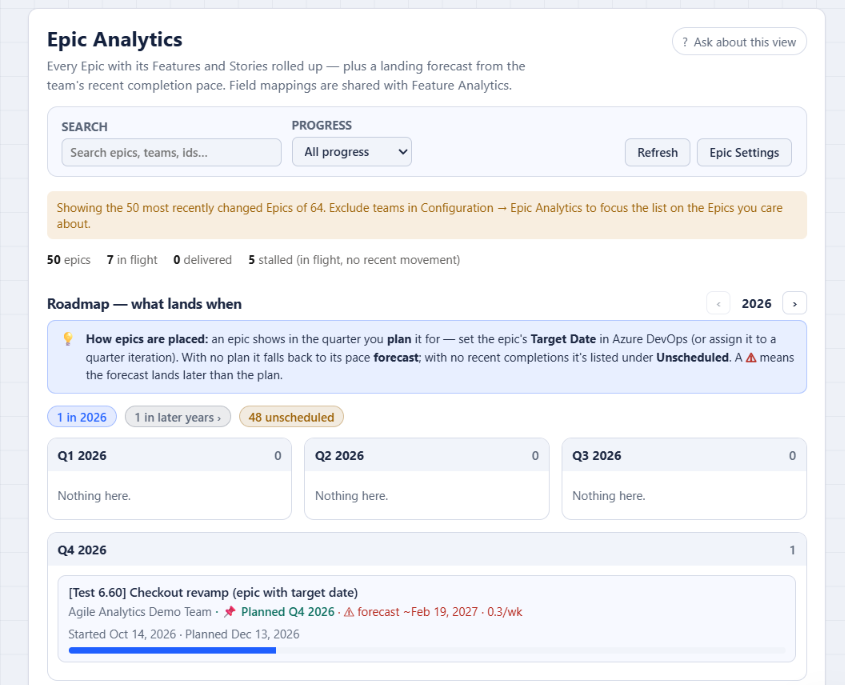
Agile Analytics is an Azure DevOps Services extension that reads your work items in the browser. Its Epic Analytics view shows each epic's completion rolled up from child items, with no tagging, and opening an epic that has Features shows its burn-up. Its roadmap flags epics whose pace forecast lands in a later quarter than planned.
The Monte Carlo "When will it finish?" mode takes a backlog size, such as an epic's remaining items, runs 10,000 trials on a team's finished-sprint throughput and returns P50, P70, P85 and P95 dates. Details are on the features page and Monte Carlo forecasting page.
What it doesn't do: it runs on Azure DevOps Services only. The forecast uses the team's whole throughput, so dates are optimistic if the team splits time across epics, and it counts items, so it won't match a Story Points burnup. Teams with one or two finished sprints get a wide range. The free Monte Carlo Sprint Forecast widget forecasts the next sprint's item count and doesn't cover epic dates.
FAQ
Does Azure DevOps have a built-in burnup chart?
Yes. The Burnup widget is in the dashboard widget catalog and is built on Analytics. The sprint burndown report and sprint burndown widget track remaining work, so the Burnup widget is the built-in way to plot completed work as a rising line.
How do I create a burnup chart for an epic in Azure DevOps?
You don't need an extension: use the built-in Burnup widget with a field criterion. Select the backlog level of the epic's children, usually Stories or Features, and filter on a tag that only that epic's work carries, applied before the start date.
Why don't items I tagged today show up earlier in my burnup?
Field criteria aren't applied retroactively. An item enters the chart on the day it first matches the criterion, so late-tagged items show up as scope increase on their tag date.
Try it on your own epics
If the burnup shows the date moving and you need a range you can defend, Agile Analytics runs the Monte Carlo forecast on your own Azure DevOps throughput. The 30-day trial needs no card, covers the whole organization, and deletes nothing when it ends. See the Monte Carlo forecast.