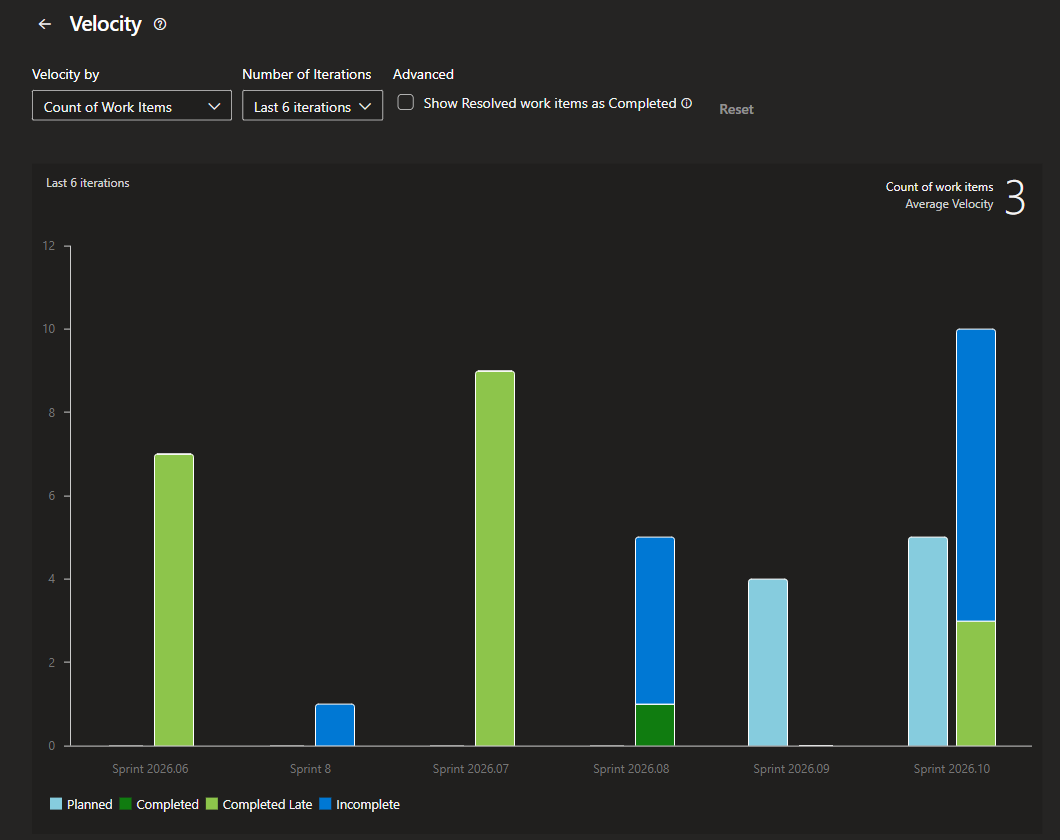
The Azure DevOps velocity chart shows how much work a team finished in each past sprint, either as a count of work items or as a sum of Story Points, Effort or Size. According to Microsoft Learn, each item's credit goes to the sprint in which it was completed, whatever sprint it was planned for. If your chart shows less than the team delivered, the usual causes are items closed after the sprint ended, items left in a Resolved state, unestimated items, and moved or removed items and reconfigured paths.
What does velocity measure in Azure DevOps?
Velocity in Azure DevOps is the work a team completed per sprint, measured as a count of work items or a sum of a numeric field such as Story Points, Effort or Size. Microsoft positions it as an input for sprint planning and forecasting. Count works without estimates; a sum only means something if the team estimates every item.
Where do you find the velocity chart in Azure DevOps?
Azure DevOps has 2 velocity charts. The in-context Velocity report lives under Boards > Backlogs > Analytics and works for product and portfolio backlogs. The Velocity widget goes on a team dashboard and has more settings. Both need Azure Boards, at least Basic access and, on Azure DevOps Server, Analytics enabled (Microsoft Learn). To check team velocity in the in-context report:
- Go to Boards > Backlogs and select Analytics.
- Pick the backlog in the backlog selector, then select View full report under Velocity.
- Choose count or a sum field, and the number of iterations. Custom iterations accepts any number from 1 to 15.
- Hover over a column for a summary, or select Copy to Dashboard to pin it.
If you see Set iteration dates to use this widget, the team hasn't completed a sprint yet or the current sprint hasn't started. Set an iteration date range that includes today, or wait for the sprint to start.
How does Azure DevOps calculate velocity?
Microsoft's velocity calculation credits each item to the sprint in which it was completed, by completion date, not to its planned sprint or current Iteration Path. Only the Planned bar comes from a historical snapshot. Completed, Completed Late and Incomplete come from current work item data (Microsoft Learn).
As a formula: in sum mode, a sprint's velocity is the total Story Points (or Effort or Size) of items that reached a Completed-category state in that sprint, wherever those items were planned. "State" in this table means the state category your workflow state maps to, not the state name.
| Bar | Which items count | Which sprint gets them | Data used |
|---|---|---|---|
| Planned | Items assigned to the sprint by the end of day 1 (adjustable in the widget), in any state | That sprint. An item can be Planned in several sprints | Historical snapshot |
| Completed | Items in a Completed-category state with a completion date on or before the sprint end date | The sprint in which they were completed | Current data |
| Completed Late | Items in a Completed-category state with a completion date after the sprint end date, measured against their current iteration | Microsoft: "the sprint when they were completed" | Current data |
| Incomplete | Items currently assigned to the sprint in an In Progress-category state | Their current sprint | Current data |
| Resolved | Items in a Resolved-category state | Not plotted, unless Resolved is treated as Completed | Current data |
| Proposed | Items in a Proposed-category state | Excluded from Completed, Completed Late and Incomplete | n/a |
| Removed | Items in the Removed state | Only in Planned, if assigned by day 1 | n/a |
Because only Planned uses a snapshot, re-estimating a finished item should change that sprint's Completed bar but not its Planned bar. When Resolved items are treated as Completed, closing a Resolved item after the sprint end date turns it from Completed into Completed Late. Velocity itself is Completed plus Completed Late. Planned is the comparison: if it sits well above Completed sprint after sprint, the team commits to more than it finishes.
The same page measures lateness against the item's current iteration, and the widget's late-day setting assumes the item stays on that iteration's column. That sits awkwardly with "credit follows the completion date", so test it on your own chart before relying on it.
Two shorter Microsoft sentences don't match the table
The table above follows the state table on the Team velocity page, the most specific rule. Two shorter sentences don't match it: the same page says "Only items with a State of In Progress or Done appear on the Velocity chart or widget", and the Forecast page says only items mapped to Proposed or In Progress appear on the velocity chart. The Forecast sentence appears to describe the open items the Forecast tool works on. To check it on your own chart, set it to Count so each item adds exactly 1:
- Planned: on the morning of day 2 (or the day after your "planned work is final" setting), before anything moves, count the sprint backlog items, Proposed ones included. That total should match Planned.
- Completed: query Completed-category items whose Closed Date (or State Change Date) falls inside a past sprint's dates, and compare with that sprint's Completed and Completed Late values. Reopened items can cause small differences.
- Credit: with a throwaway item or a test project, move a Closed item between 2 past sprints and see whether either Completed bar changes.
Why does my Azure DevOps velocity look wrong?
Velocity usually looks wrong for one of 7 documented reasons: moved or removed items, items closed after the sprint ends, the Resolved state, deleted or reconfigured paths, unestimated items, sprints without dates or of different lengths, and team settings that pull work in or leave it out. The fix is usually a habit or a setting.
1. Items moved or removed during the sprint
In Microsoft's example, an item is planned for Sprint 1 (ends March 15), moved to Sprint 2 (ends March 30) and completed March 25. It stays Planned in Sprint 1, its velocity goes to Sprint 2, and it isn't late, because the late check uses the current iteration's end date (Microsoft Learn). So moving an item forward before closing it can clear its Completed Late label. An item set to Removed stays in Planned but drops out of every other bar, so the sprint looks like a missed commitment.
2. Items closed after the sprint ends
An item closed after the sprint end date counts as Completed Late. Microsoft says it contributes velocity to the sprint in which it was completed, and the widget can highlight it in light green. If your team closes stories in a review the day after the sprint, set the Velocity widget's Days past end date of iteration after which work is late to 1 or 2 so those items count as on time.
3. The Resolved state
Resolved-category items aren't plotted unless Resolved is treated as Completed. The mapping differs by process. In Agile, a Bug's Resolved state maps to the Resolved category, so it is left off the chart. In CMMI, Resolved on a Requirement maps to In Progress, so a CMMI Requirement sitting in Resolved shows as Incomplete until it's Closed (state categories, Microsoft Learn).
4. Deleted or reconfigured paths
Deleting Area Path values or reconfiguring Iteration Path values causes irreversible data loss in velocity charts for teams with changed area paths, and in burndown and burnup charts (Microsoft Learn).
5. Items with no estimate
In sum mode, an item without Story Points adds nothing. A big gap between the Count and Sum views of one sprint points to unestimated items.
6. Sprints without dates, or of different lengths
A sprint needs dates to show up, and Microsoft lists equal sprint lengths as a required task. A 3-week sprint among 2-week ones looks like a jump in velocity.
7. Team area paths and bug settings
The team's area path settings decide which items are included, and bugs count toward velocity only if the team treats them like requirements. To track bugs on their own, point a widget at the Bug work item type instead of a backlog level.
How do you configure the Velocity widget?
For a velocity dashboard, add the Velocity widget to a team dashboard from the widget catalog and select Configure from its actions menu. You pick one team, a backlog level or work item type, count or sum, and up to 15 sprints (6 by default). Two optional day settings decide when work counts as planned and as late. To add it, open the dashboard, select Edit, search the catalog for "Velocity", and select Add (Add a widget, Microsoft Learn). Then set the 2 day settings:
- Display planned work for iterations, with Days past start date of iteration when planned work is final. If your first 2 days are planning, enter 3 so Planned is counted on the third day.
- Highlight work completed late, with Days past end date of iteration after which work is late. Microsoft applies it to items whose "status is still new or is in progress." Entering 3 gives the team 3 days after the sprint ends to close items, which fixes day-after sprint review closures.
How many sprints should you average for velocity?
Microsoft suggests the average of the last 3 to 6 sprints when you use velocity in the Forecast tool (Forecast, Microsoft Learn). Use that as a starting point, and report the range next to the average, because sprint-to-sprint variation is what decides whether a date slips.
Microsoft's example team completes 25, 30 and 28 Story Points in 3 sprints, an average of about 28 (Team velocity). The range is 25 to 30. Plan a release on 28 per sprint and you have already missed that pace in 1 sprint out of 3.
Re-check the average when the team changes; Microsoft notes the Forecast tool doesn't adjust for that. Read velocity next to capacity planning for the coming sprint: velocity says what you finished, capacity says who is available.
Is velocity a KPI?
No. Microsoft tells teams to use velocity to help determine capacity and not to confuse it with key performance indicators. Velocity depends on each team's own estimation scale, so it can't compare two teams, and it shifts when people re-estimate. Once it becomes a target, estimates tend to inflate. Use it for sprint planning and forecasts, not to rank teams or rate people.
What Agile Analytics adds, and what it doesn't
Agile Analytics is an Azure DevOps Services extension from Baytek that reads your work item history and adds commitment, carry-over and a throughput-based Monte Carlo forecast next to velocity. It doesn't change the built-in chart or fix inconsistent estimates, and it is only as good as your board's upkeep.
What it adds (details on the sprint reporting page):
- The Sprint Velocity view shows, for each of your last 6 completed sprints, the items finished (throughput), commitment reliability, scope churn and carry-over, with a bar comparing each sprint with the best one.
- Sprint Summary rebuilds committed, delivered and carried-over work from revision history. Work delivered within a 24-hour grace window after sprint end still counts for that sprint, and an item canceled in place drops out of both committed and delivered, unlike a Removed item on the built-in chart.
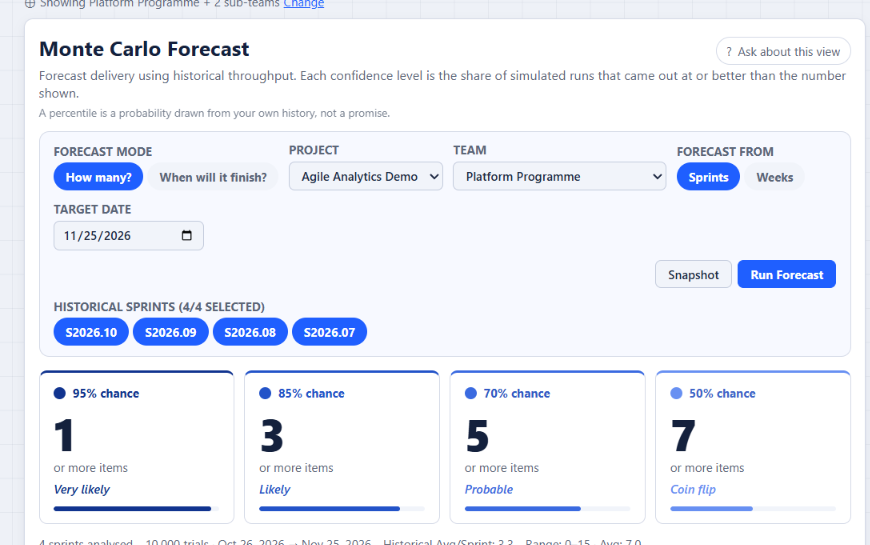
- Monte Carlo Forecast runs 10,000 trials on your finished-sprint throughput and reports P50, P70, P85 and P95.
- A separate, free Monte Carlo Sprint Forecast widget shows next-sprint item counts at 50% and 85% confidence, with no account or license key.
What it doesn't do:
- It runs on Azure DevOps Services only, not Azure DevOps Server.
- Baytek holds no SOC 2 or ISO 27001 attestation. The extension runs in your browser with 4 read-only scopes, and work item content never reaches Baytek.
Try it on your own sprints: the 30-day trial of Agile Analytics needs no credit card, and everyone in your organization has access while it runs.
FAQ
Does moving a work item to another sprint change velocity?
Not until it's completed. It stays Planned in its original sprint, and its velocity goes to the sprint where it's completed. Moving it forward can also remove a Completed Late label.
Can I see velocity for several teams on one dashboard?
Each Velocity widget covers one team. Microsoft suggests a portfolio team whose area paths roll up the others. Only combine story points if the teams estimate on a comparable scale.
Why is a sprint missing from my velocity chart?
Usually it has no dates, isn't selected for the team, or hasn't started. If its Iteration Path was deleted, Microsoft says that path's historical data can't be retrieved.
Should velocity use count or story points?
Use story points, Effort or Size if the team estimates every item consistently, and count if estimates are patchy. If you report velocity to leadership, use the same unit every sprint and say which one.
Can Azure DevOps forecast based on velocity?
Yes. The backlog's Forecast tool takes one velocity number you type in and draws a line for each future sprint, carrying unused velocity forward. It needs estimated backlog items and gives one answer per velocity, so try both ends of your range.